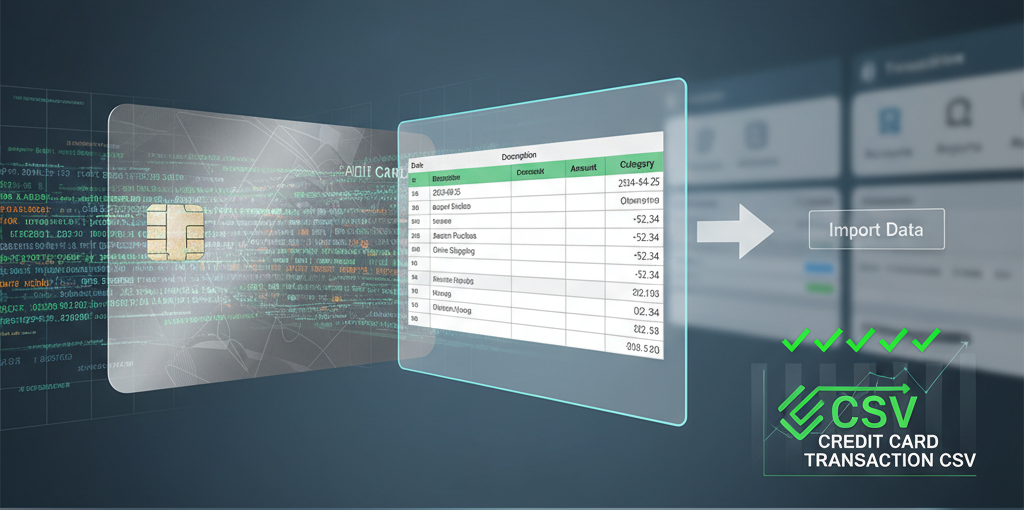
Mastering Credit Card Transaction CSV for Bookkeeping Import Software Compatibility and Best Practices
Learn how to master credit card transaction CSV for bookkeeping import, ensuring software compatibility, accuracy, and efficiency in your financial management. Discover best practices for preparing and importing your data into popular accounting platforms.
Why Standardized CSVs are Essential for Bookkeeping
Maintaining accurate financial records is paramount for any business or individual. The cornerstone of efficient bookkeeping lies in the ability to seamlessly integrate financial data. A credit card transaction csv for bookkeeping import is not just a file; it's a critical tool that ensures financial integrity and operational efficiency. Without a standardized and accurate CSV format, you risk encountering frustrating errors, time-consuming manual data entry, and inconsistent financial reporting. This guide will walk you through the nuances of preparing and importing your credit card transactions, ensuring your data is always audit-ready and compatible with your chosen bookkeeping software.
Preparing Your Credit Card Transaction CSV for Optimal Accounting Software Import
To prevent common import errors and streamline your financial management, properly preparing your CSV file is crucial. Transforming raw credit card statement data into a transaction csv compatible with spreadsheets and various accounting platforms involves specific formatting and attention to detail. This section details the critical steps to ensure your data is universally readable and ready for import.
Key Data Fields for Bookkeeping CSVs
For successful credit card transaction csv for accounting software integration, certain data fields are non-negotiable. Your CSV should ideally include columns such as: Date, Transaction Type (e.g., Debit, Credit), Description, Amount, and Category. Ensuring uniformity in data types—for example, all dates follow the same format, and all amounts are numerical—is vital for seamless processing. Any missing or improperly formatted fields can lead to import failures or inaccurate record-keeping.
Standardizing Transaction Descriptions for Clarity
Raw transaction descriptions from credit card statements can often be cryptic or inconsistent. To create a truly spreadsheet-ready statement export, it's essential to clean and standardize these descriptions. For instance, a transaction like "AMZN Mktpl PMTS *8K2YJ4H1" could be simplified to "Amazon Marketplace Purchase." Consistent descriptions not only make your data more readable but also significantly improve the accuracy of automated categorization within your bookkeeping tools, saving hours of manual cleanup. Consider creating a master list of common vendor names and standardizing them across all your CSVs. More on this topic can be found in our blog on Unlock Audit-Ready CSVs: Master Split Transactions & Wrapped Card Statement Descriptions.
Handling Dates and Amounts Formats
Date and amount formats are frequent culprits behind csv export for ledger software import failures. Different software might prefer MM/DD/YYYY, DD-MM-YYYY, or YYYY-MM-DD. Always check your accounting software's specific requirements. For amounts, ensure consistency in decimal separators (e.g., periods vs. commas) and avoid currency symbols within the amount field itself. Credits should generally be positive values, and debits (expenses) can be represented as negative values or in a separate column, depending on your software's preference. Proper formatting here is key to avoiding misinterpretations and ensuring accurate financial reporting.
Accounting Software Compatibility: Importing Credit Card Transaction CSVs
While the concept of a credit card transaction csv for bookkeeping import is universal, the exact process and specific requirements vary widely across platforms. Understanding how to import card transactions into bookkeeping tools for your chosen software is crucial for a smooth and error-free experience. This section offers guidance for popular accounting platforms.
QuickBooks Online and Desktop CSV Import Guide
QuickBooks, a widely used accounting solution, offers robust import functionalities. For QuickBooks Online, navigate to the "Transactions" menu, then "Bank transactions," and select "Upload transactions" or "Link account." You'll be prompted to map your CSV columns to QuickBooks' fields. For QuickBooks Desktop, the process involves going to "File," then "Utilities," "Import," and "Excel Files" (though CSV is often accepted through similar paths or third-party tools). Pay close attention to the date format and ensure that your credit card transaction csv for bookkeeping import correctly distinguishes between debits and credits, as QuickBooks has specific rules for these.
Importing Credit Card CSVs into Xero
Xero streamlines the statement data import for accountants with its intuitive bank statement import feature. From your Dashboard, select the bank account you wish to import transactions into, then click "Manage Account" and "Import a Statement." Xero will guide you through uploading your CSV and mapping the columns. It's vital that your credit card transaction csv for accounting software matches Xero's expected column headers (e.g., Date, Amount, Payee, Description, Reference). Xero is particular about date formats and requires amounts to be positive for both money in and money out, with a separate column indicating the transaction type (e.g., "Spend Money" or "Receive Money"). Xero is particular about date formats and requires amounts to be positive for both money in and money out, so ensure your statement data import for accountants CSV aligns with this. Always review the mapped data before finalizing the import to catch any discrepancies and ensure your file meets Xero's precise column order and formatting requirements.
Wave Accounting and CSV Statement Integration
Wave Accounting offers a straightforward process for importing transaction csv compatible with spreadsheets. Within your Wave account, navigate to "Accounting" > "Transactions," then click "Upload bank statement." Wave provides clear instructions for mapping your CSV columns to its internal fields. Its user-friendly interface simplifies the reconciliation of credit card transactions, allowing you to quickly categorize and match imported data. Ensure your CSV file has columns for Date, Amount, and Description, and that amounts are formatted consistently (e.g., positive for money in, negative for money out, or using separate debit/credit columns).
Quicken and Other Ledger Software CSV Import Tips
For Quicken and other personal finance or csv export for ledger software tools, the import process can vary. Many of these applications support CSV imports, often accessible through a "File" > "Import" menu or a similar function within the banking section. It's crucial to consult the specific software's documentation for exact file format requirements, as some might prefer QIF or OFX formats, or have very specific CSV column headers. When preparing your csv export for ledger software, prioritize data integrity by double-checking all dates, amounts, and descriptions. Implement strong categorization practices during or immediately after import to maintain clean and actionable financial records. Always back up your financial data before attempting any large imports to prevent potential data loss.
Overcoming Common Credit Card CSV Import Challenges
Addresses typical issues encountered when attempting to import card transactions into bookkeeping tools, offering practical solutions and troubleshooting tips to ensure a smooth data transfer.
Mapping Discrepancies and Missing Data
Provides strategies for resolving common mapping errors and ensuring that all necessary data fields are correctly recognized and imported by the accounting software, preventing missing transaction records.
Error Messages and Troubleshooting Steps
Offers a guide to interpreting common import error messages and outlines actionable steps to diagnose and rectify issues related to credit card transaction csv for accounting software formatting or content.
Best Practices for Pre-Import Validation
Recommends pre-import checks and validation techniques to verify the CSV's integrity and compatibility before attempting the final upload, minimizing post-import corrections and data cleanup.
Automating Credit Card Statement to CSV Conversion for Seamless Import
Introduces how AI-powered tools simplify the initial step of generating a perfectly formatted credit card transaction csv for bookkeeping import from various PDF statements, thereby streamlining the entire bookkeeping process.
The Role of AI in Standardizing Diverse Statement Formats
Explains how AI solutions like Card Statement CSV automatically standardize transaction data from diverse credit card PDF statements into a universally compatible what file format works best for bookkeeping CSV, ready for direct import.
Enhancing Accuracy and Efficiency with Automated Conversion
Highlights the benefits of using secure, automated conversion services to achieve high accuracy rates and significantly reduce manual data entry time for statement data import for accountants.